To format a SD card for a trail camera, first verify the card matches your camera’s capacity and speed requirements.
Insert it properly, disable write protection, and power on your camera or connect to a computer.
Format using FAT32 for cards 32GB or less, or exFAT for larger sizes—confirm your camera supports the chosen system.
Always back up data before formatting, and wait for the process to complete fully.
Keep the card healthy to avoid errors.
For deeper insights and troubleshooting, explore further guidelines.
Key Takeaways
- Ensure the trail camera is powered on, with a fully inserted and write-protection-disabled SD card before starting formatting.
- Choose FAT32 for SD cards 32GB or smaller, and exFAT for cards larger than 32GB, verifying camera compatibility.
- Access the camera’s menu or computer utility to select the appropriate file system and initiate the format process.
- Back up important data before formatting, and update camera firmware to prevent formatting errors.
- Confirm the camera recognizes the SD card after formatting and avoid removing the card during the process to prevent corruption.
Why Format Your SD Card for Trail Cameras
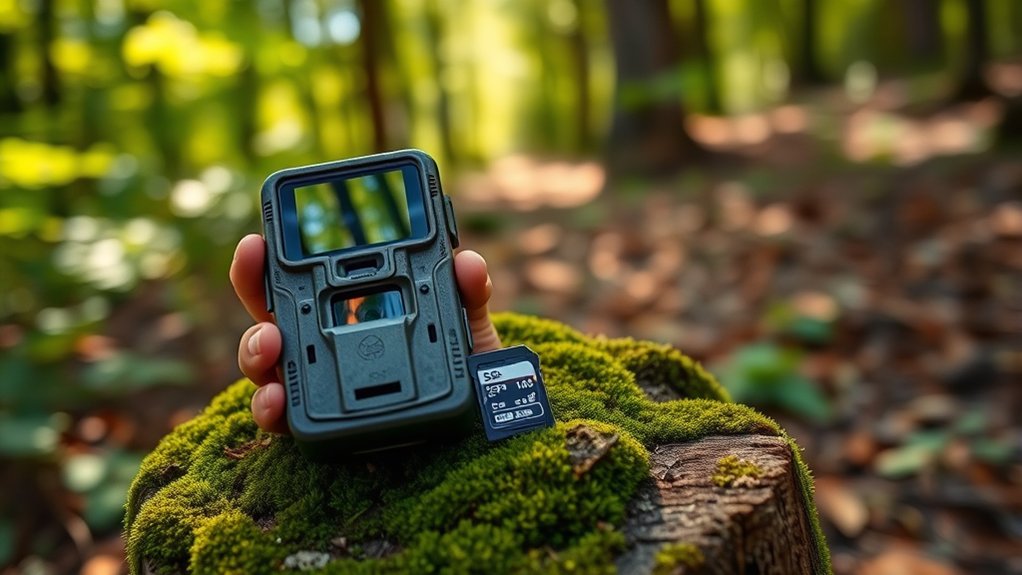
Although you might think an SD card is ready to use straight out of the package, formatting it for your trail camera is essential to guarantee proper file system compatibility, ideal data storage, and reliable performance. By formatting, you erase any existing data structures that could interfere with the camera’s operation, preventing file corruption and read/write errors. This process aligns the card’s file system with the camera’s requirements, ensuring efficient data indexing and retrieval.
Regular SD card maintenance through formatting also clears residual files and fragmented data, which can degrade performance over time. Formatting benefits include optimizing storage capacity and extending the card’s lifespan by reducing the risk of data errors. Skipping this step risks unreliable recording and potential loss of valuable trail footage.
What File System Should You Use When Formatting an SD Card?
Formatting your SD card properly sets the stage for choosing the correct file system, which directly affects how your trail camera stores and accesses data. When selecting file system choices, you typically encounter FAT32 and exFAT.
FAT32 is widely compatible and ideal for cards 32GB or smaller, offering reliable formatting benefits such as efficient file storage and broad device support. For SD cards larger than 32GB, exFAT is preferable, as it handles bigger files and partitions without the 4GB file size limit FAT32 imposes.
Verify your trail camera supports exFAT before using it; otherwise, FAT32 remains the safest option. By selecting the correct file system, you optimize your camera’s performance, prevent data corruption, and guarantee seamless file management during your outdoor monitoring sessions.
Get Your Trail Camera Ready to Format the SD Card
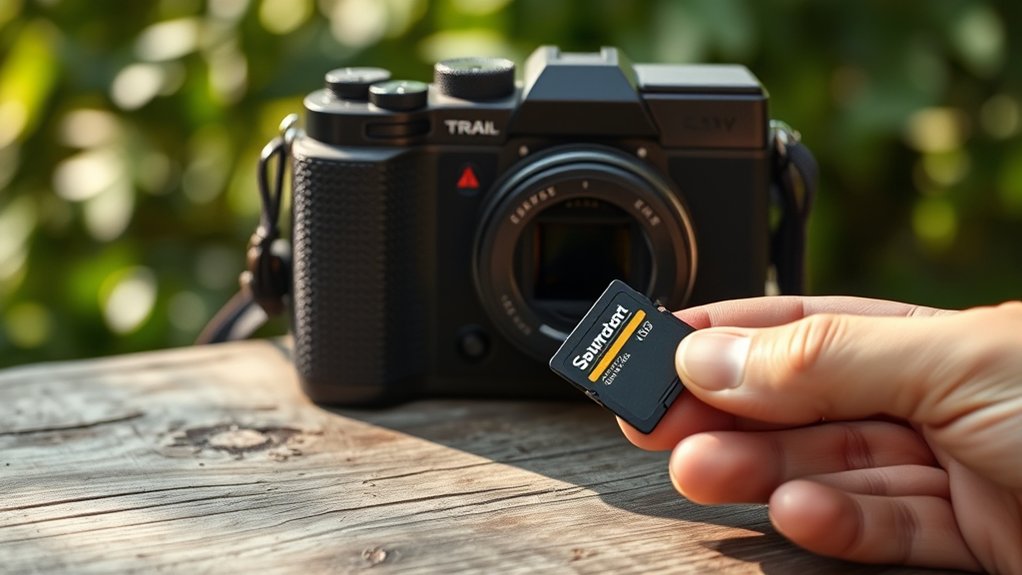
Before you format the SD card, make certain your trail camera is fully powered and connected properly. Begin your pre formatting checklist by verifying battery levels or connecting an external power source to prevent interruptions. Ascertain the SD card is correctly inserted into the designated slot.
Next, access the camera’s menu to perform any necessary camera settings adjustment—this includes disabling write protection and pausing active recording modes to avoid data corruption. Confirm the camera firmware is up to date, as outdated firmware can cause formatting errors.
Double-check that the camera recognizes the SD card to confirm compatibility. Completing this pre formatting checklist assures a smooth process and protects your camera’s functionality before you proceed to format the SD card.
How to Format an SD Card on Your Trail Camera
You’ll start by accessing your trail camera’s menu to locate the format option, then confirm the action to erase and prepare the SD card for use.
Be aware that some cameras require the card to be inserted before powering on, while others allow formatting through a connected app.
Common issues include incomplete formatting due to power interruptions or incompatible file systems, so verify the process completes fully and the card matches your camera’s specifications.
Formatting Steps Overview
To prepare your SD card for ideal use in a trail camera, follow a series of precise steps that secure proper formatting and compatibility. First, back up any important data, as formatting will erase all content. Insert the SD card into the camera or a compatible card reader connected to your computer.
Next, access the formatting tools—either via the trail camera’s menu or your computer’s disk management utility. Select the recommended file system, typically FAT32 or exFAT, depending on card size and camera requirements. Initiate the format process and wait until it completes without interruption.
Following these best practices secures your card is properly prepared, enhancing data integrity and camera performance. Always confirm the camera recognizes the card post-format before use in the field.
Common Formatting Issues
While formatting your SD card generally proceeds smoothly when following the outlined steps, certain issues can arise that interfere with proper setup or camera recognition. You might encounter problems related to incompatible file systems, incorrect formatting methods, or exceeding the trail camera’s supported storage capacity.
Each can disrupt the formatting process and prevent the camera from reading the card properly.
| Issue | Cause |
|---|---|
| Formatting Failure | Corrupted card or unsupported file system |
| Storage Capacity Limit Exceeded | Card size exceeds camera specification |
| Slow Write Speeds | Low-speed card affects data transfer |
To avoid these, verify your SD card matches the camera’s storage capacity limits and format it using the camera’s native options or recommended software for the correct file system.
How to Format an SD Card on a Computer

Although formatting an SD card on a computer might seem straightforward, it requires careful attention to guarantee compatibility with your trail camera. First, identify the SD card type—SD, SDHC, or SDXC—as each supports different file systems. Insert the card into your computer’s card reader, then access the formatting tool via your operating system’s settings—Disk Management on Windows or Disk Utility on macOS.
Select the correct drive to avoid data loss on other devices. Choose the FAT32 file system for SD and SDHC cards, or exFAT for SDXC cards, aligning with your camera’s specifications. Avoid quick format if your card has previous errors; instead, perform a full format to ensure integrity.
Confirm settings, then initiate formatting. Once complete, safely eject the SD card before inserting it into your trail camera.
Troubleshooting SD Card Formatting Problems
If you encounter errors while formatting your SD card, check for common issues like write protection or incorrect file system selection.
Verify that your trail camera supports the card’s capacity and format to avoid compatibility problems.
For corrupted cards, use specialized repair tools or low-level formatting utilities to restore functionality before retrying the format.
Common Formatting Errors
Anyone formatting an SD card for a trail camera may encounter errors related to file system incompatibility, corrupted sectors, or insufficient card capacity. These issues often stem from user errors such as improper card read procedures or neglecting camera settings that affect formatting speed and data integrity.
File corruption can occur if the card is removed prematurely or if recovery tools aren’t used correctly. Ensuring sufficient storage capacity and proper formatting methods is essential to avoid these errors.
| Common Error | Cause |
|---|---|
| File System Mismatch | Incompatible format selected |
| Corrupted Sectors | Physical damage or abrupt removal |
| Insufficient Capacity | Card smaller than required |
| Slow Formatting Speed | Faulty card reader or software |
| Data Integrity Issues | Interrupted formatting process |
SD Card Compatibility Issues
Multiple factors can cause SD card compatibility issues when formatting for trail cameras, and understanding these is essential to troubleshooting effectively. First, verify your trail camera supports the specific SD card types—SD, SDHC, or SDXC—as each has different capacities and file system requirements.
Compatibility factors also include the card’s speed class and storage size; some cameras won’t recognize cards above a certain capacity or require a minimum write speed for proper operation. Additionally, older cameras may not support newer high-capacity cards or exFAT file systems used by SDXC cards.
If your camera doesn’t format the card correctly, check these compatibility factors against the manufacturer’s specifications. Ensuring you use a supported SD card type mitigates formatting failures and data write errors during operation.
Fixing Corrupted Cards
Three common causes of SD card corruption in trail cameras include improper removal, power interruptions during writing, and file system errors. To fix corrupted cards, first attempt these recovery methods carefully, as improper handling may worsen corrupted data.
- Use the camera’s built-in format option to reset the file system.
- Connect the SD card to a computer and run CHKDSK or a similar utility to repair file system errors.
- Employ specialized data recovery software to salvage important files before formatting.
- Format the card using FAT32 or exFAT, matching the camera’s specifications.
- If problems persist, replace the card to avoid recurring corruption.
Following these steps helps restore functionality while minimizing data loss on your trail camera’s SD card.
How Often to Format Your SD Card for Optimal Performance
Regularly formatting your SD card is essential to maintaining its reliability and guaranteeing your trail camera operates smoothly. Adhering to established frequency guidelines, you should format your card at least once every 4 to 6 weeks, or after every 500-1000 photos, depending on usage intensity. This practice prevents file system fragmentation and minimizes corrupted data, directly contributing to performance enhancement.
Additionally, formatting before new deployments clears residual cache and optimizes storage allocation, allowing faster write speeds and reducing the risk of recording errors. Avoid relying solely on deleting files, as this leaves file system remnants that degrade long-term efficiency.
Tips to Keep Your Trail Camera SD Card Healthy
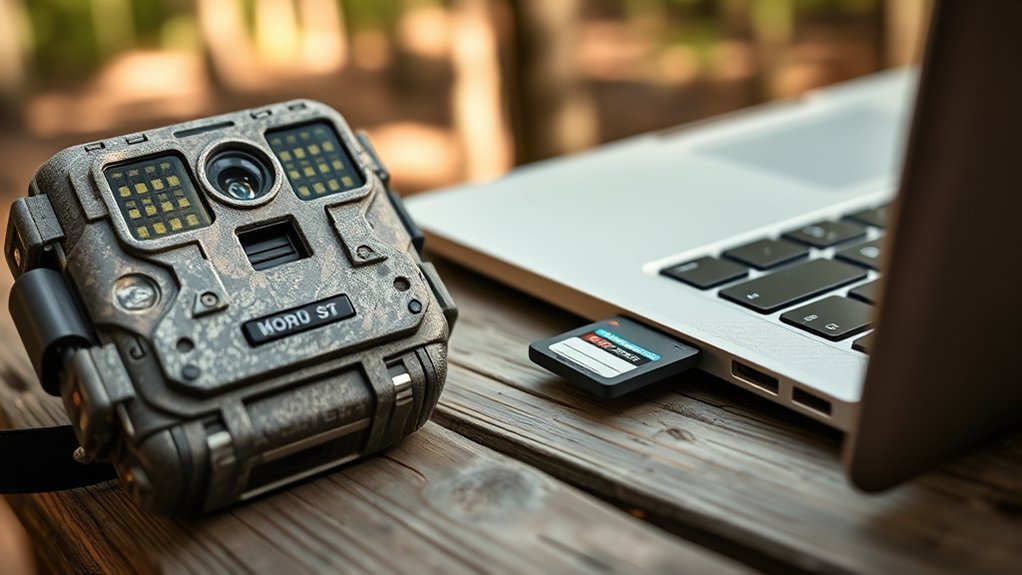
Although formatting is essential, you should also implement specific handling and storage practices to preserve your trail camera SD card’s health. Proper storage and careful use directly influence your card lifespan and data integrity.
To keep your SD card healthy:
- Store the card in a static-free, waterproof case when not in use.
- Avoid removing the card while the camera is powered on to prevent file corruption.
- Handle the card by its edges, avoiding contact with metal connectors.
- Keep the card away from extreme temperatures and direct sunlight.
- Regularly back up data and format the card using your camera’s recommended settings.
Common Mistakes to Avoid When Formatting Your SD Card
When formatting your SD card, you must avoid common mistakes that can compromise data integrity and card performance. First, don’t skip backing up your data before formatting; losing valuable trail footage is avoidable. Avoid using the camera’s quick format option repeatedly, as it may not fully erase corrupted files—stick to full format when necessary.
Also, improper formatting frequency can harm the card; format only when performance issues arise or before new deployments, following best practices. Using incompatible file systems or formatting tools not recommended by the trail camera manufacturer is another frequent error.
Finally, never remove the SD card during formatting, as this can cause file system corruption. By adhering to these guidelines, you’ll maintain ideal SD card reliability and preserve your trail camera’s functionality.
Frequently Asked Questions
Can I Use Any Brand of SD Card With My Trail Camera?
You can use various SD card brands, but guarantee SD card compatibility with your trail camera brands.
Check your camera’s specifications for supported formats and speeds, as incompatible cards may cause recording errors or reduced performance.
How Much Storage Capacity Do I Need for a Trail Camera SD Card?
Think of storage requirements as a reservoir—choose capacity based on your trail camera’s resolution, trigger speed, and deployment duration.
Higher megapixels and longer monitoring demand larger SD cards, typically between 32GB and 128GB, for peak performance.
Will Formatting Erase All My Photos and Videos Permanently?
Yes, formatting will erase all your photos and videos permanently. While some data recovery tools might retrieve files after quick format, full format options overwrite data, making recovery nearly impossible.
Can I Recover Data From a Corrupted SD Card?
Yes, you can attempt data recovery from a corrupted SD card using specialized software designed to retrieve corrupted files. However, success depends on the damage extent, so act promptly and avoid overwriting data to maximize recovery chances.
Does Temperature Affect SD Card Performance in Trail Cameras?
Yes, temperature extremes impact your SD card’s performance stability by causing potential data errors, slower write speeds, and hardware stress.
You’ll need to guarantee your trail camera operates within recommended temperature ranges to maintain reliable data recording.
Conclusion
Regularly formatting your SD card guarantees your trail camera runs smoothly and prevents data corruption. Studies show that improperly formatted cards can reduce device lifespan by up to 30%. By choosing the right file system and formatting method, you maintain peak performance and reliability.
Remember to format your card every few weeks, back up data, and avoid common pitfalls to extend your card’s life. These steps help capture every vital moment accurately. Stay proactive for best results when you format a SD card for a trail camera.